


Tools, reports and settings
The small utilities behind Tools, what the app has recorded about your practice, the keyboard in Free Play, and what you can change about the app itself.
The Tools menu
 1
2
3
4
5
6
1
2
3
4
5
6
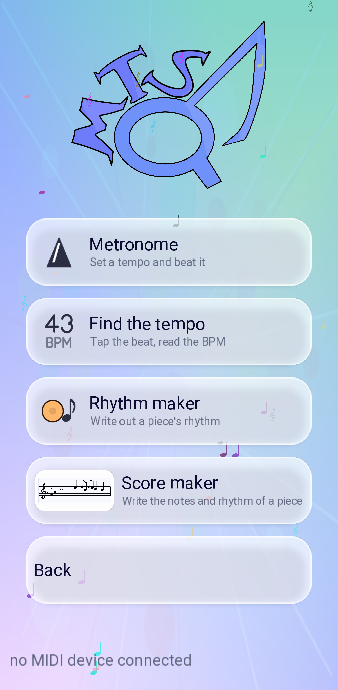
- Reports — what the app has recorded about your practice.
- Metronome — a tempo to play against.
- Note detector — play near the phone and the app names the note.
- Find the tempo — tap the beat, read the BPM.
- Rhythm maker — write out a rhythm. It has its own page.
- Score maker — write out notes and rhythm together. It has its own page.
Metronome
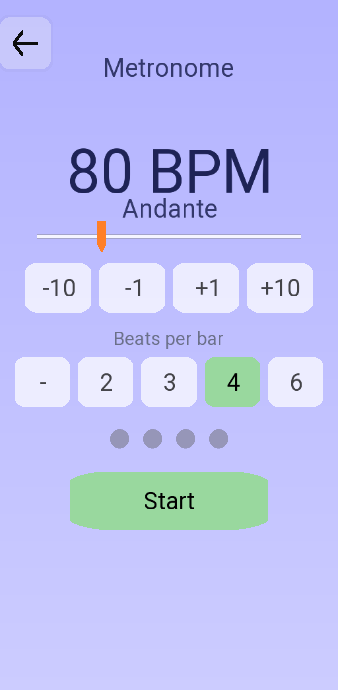
A plain metronome, with the four buttons underneath doing the fiddly part: −10 and +10 to travel, −1 and +1 to land exactly. Beats per bar decides which click is accented, and the row of dots shows where in the bar you are. The dash option turns the accent off altogether.
Find the tempo
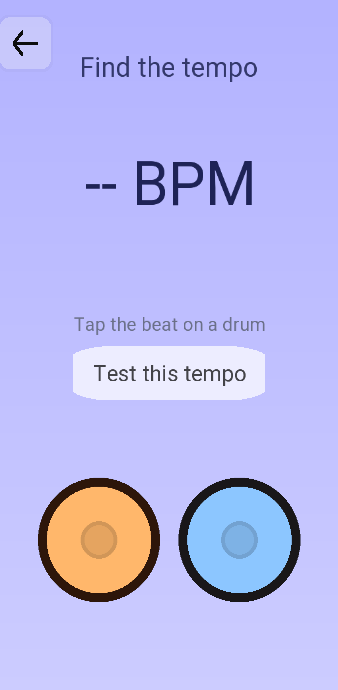
The reverse problem: you have the music, you want the number. Tap either drum in time with what you are hearing and the reading settles after a few beats. Alongside the BPM the app reports how many taps it has counted and a steadiness percentage — how consistent your tapping was, which is worth a glance in itself.
Test this tempo then runs the metronome at the figure it found, so you can check it against the music before writing it down.
Note detector
Play something near the phone — a piano, a guitar, a recorder, your own voice — and the screen names the nearest note. Beside the name it gives the pitch in hertz, how far off it is in cents, and how sure it is as a percentage. If it hears several notes at once it also tries to name the chord.
The needle runs from −50 to +50 cents, flat to the left, sharp to the right. A level meter shows what the microphone is picking up. The last note stays on screen for a moment after the sound stops, and fades while it waits.
Android asks for permission to use the microphone the first time you open the screen. Nothing is recorded and nothing is sent anywhere: the sound is analysed on the device and thrown away.
Reports
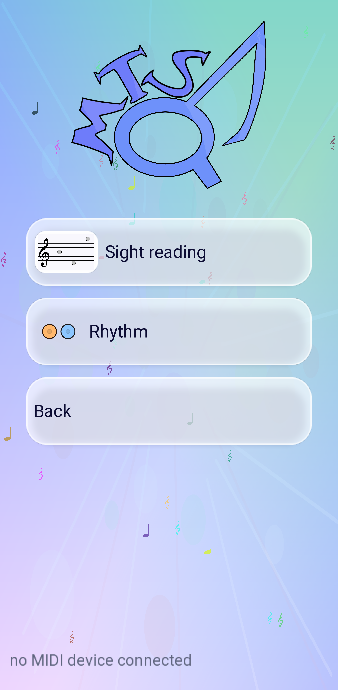
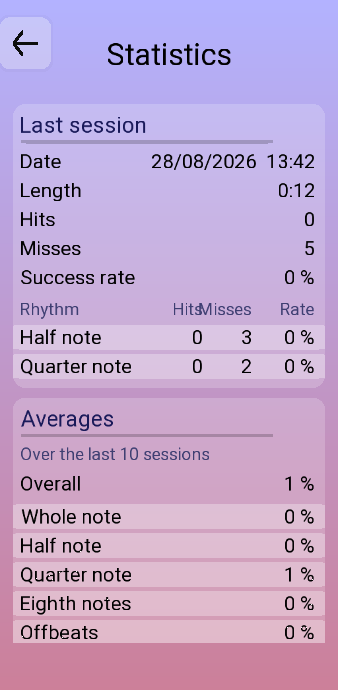
Sight reading is recorded by clef and by key signature, which is what lets you see that the treble is fine and the bass is not, or that three flats undo you. Rhythm is recorded per figure, with averages over the last ten sessions.
Both are worth reading the same way: ignore the single-session number, which bounces around, and look at the breakdown. It tells you what to practise tomorrow, which is the only thing statistics are good for.
Free Play
Free Play sits on the home screen. You get a keyboard with no exercise attached, and a row of tabs above it. Each tab adds something to the same keyboard underneath.
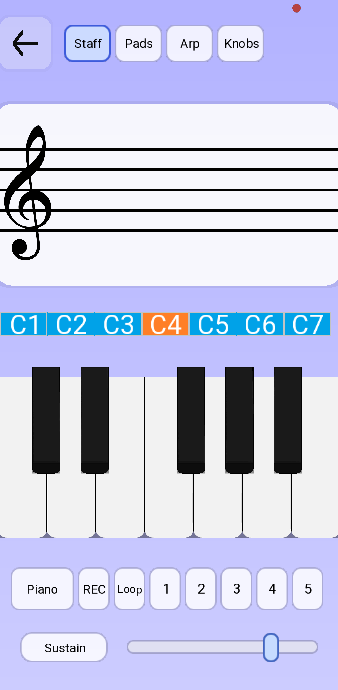
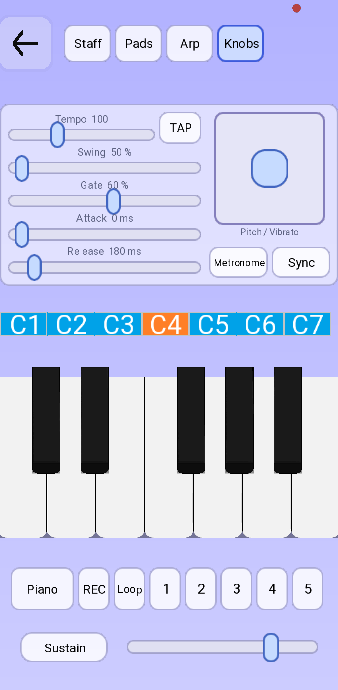
The octave strip above the keys moves you up and down the instrument, and the same strip appears in the score maker. If a MIDI piano is plugged in, it plays here too.
The row under the keyboard
The row under the keyboard stays the same in every tab. The first button names the instrument; touch it to move to the next one, from the piano through to the drums. Sustain and the volume slider work as they do everywhere else in the app.
REC, Loop and the numbered buttons beside them are the phrase slots. A slot keeps the instrument each note was played with, so you can put a drum part in one and a bass line in another. The slots play at the same time, and you can record over the ones already running.
- Touch REC, then a numbered slot.
- Play. Recording starts on your first note, so there is no silence at the front.
- Touch the slot again to finish. That moment sets the length of the phrase, and the length of its loop.
- Touch the slot to play it back, and again to stop it. Loop makes it repeat.
- Hold a slot down to empty it. Slide up or down on it to set its level.
Pads
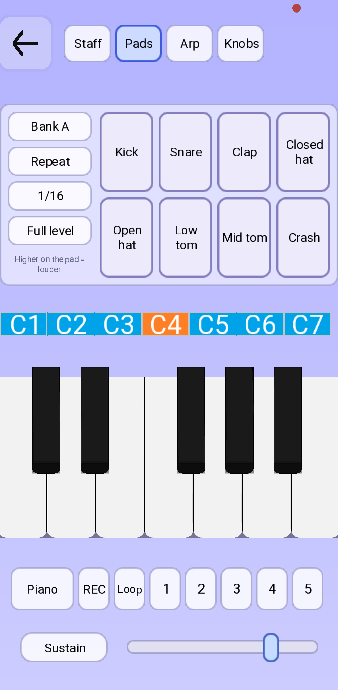
Where you hit a pad decides how hard it sounds: higher on the pad is louder. Full level turns that off and plays every hit at maximum. Bank A swaps the pads for a second set of drums.
Repeat holds a pad down and repeats it at the division shown beside it, so one finger plays a hi-hat line. The repeat follows the tempo set in Knobs.
Arp
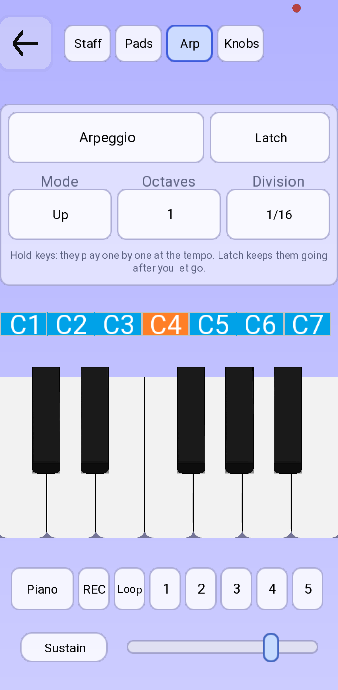
With Arpeggio on, the keys you hold play one at a time, at the tempo, instead of together. Latch keeps them going after you let go.
Mode sets the direction they run in. Under Octaves you choose how far above the chord they climb before starting again, and Division sets how fast they come.
Knobs
Tempo sets the speed the arpeggiator, the pad repeat and the loops all run at. TAP beside it finds that speed from the beat you tap.
| Knob | What it does |
|---|---|
| Swing | Delays every other subdivision. At the halfway mark the notes come out even, and the pattern lilts more the further you go above it. |
| Gate | How much of its slot a note holds before it stops. A short gate gives staccato, a long one legato. |
| Attack | How long the note takes to reach full volume. At the bottom of the slider it arrives at once. |
| Release | How long it takes to die away once you let go. |
| Pitch / Vibrato | A square pad. Drag sideways to bend the pitch, up and down to add vibrato. |
| Metronome | A click at the tempo, to play against. |
| Sync | Lines the loops up with the tempo so they start on the beat instead of the instant you tapped. Recording waits for the next bar too, after a bar of count-in. |
Settings
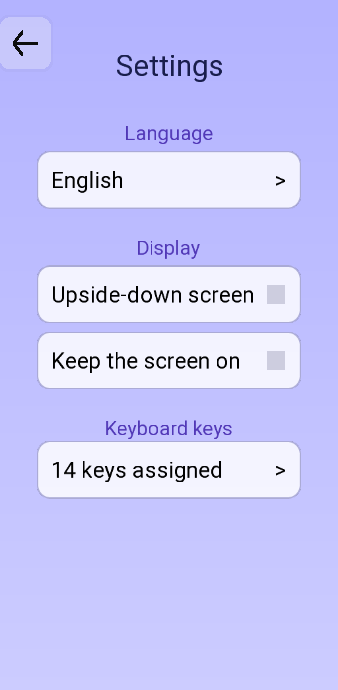
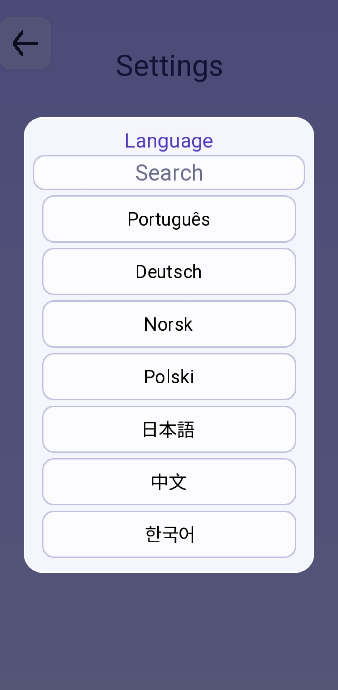
| Setting | What it does |
|---|---|
| Language | Pick a language, or Automatic to follow the device. Type in the search box to filter the list. Changing it reloads the app. |
| Upside-down screen | Flips the display. Useful when the charging cable — or the OTG adapter with the piano on the end of it — comes out of the wrong side of the phone. |
| Keep the screen on | Stops the phone dimming mid-session. Worth turning on for anything you play from a stand. |
| Keyboard keys | Which physical key answers for which drum and which piano note. Tap a row, press the key you want; X clears one and the button at the bottom restores the defaults. |
| Privacy and ads | Appears where the law requires the choice to be re-openable — in the European Union, for instance. It reopens the consent dialogue so you can change what you agreed to. |
Note names — DO RE MI or C D E — are not here. That one lives in the sight reading options, and the choice applies across the whole app.