
Score maker
The rhythm maker writes when. This one writes when and which note, on a grand staff, for both hands — and hands the result to Sheet music reading to be played.
You will find it under Tools › Score maker.
My scores
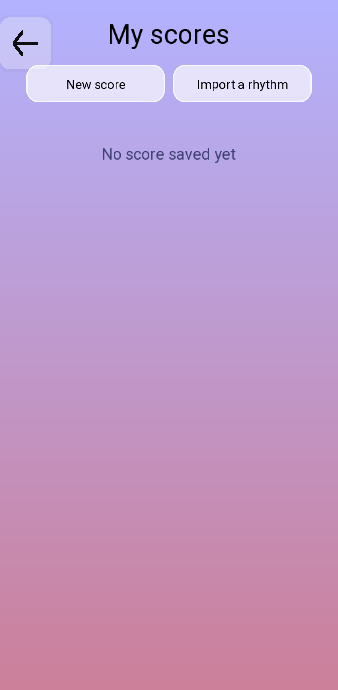
Import a rhythm is the bridge between the two tools. It takes any rhythm from the rhythm maker and makes a copy of it as a score, with every note sitting on C. The original rhythm is left alone. You then only have to move the pitches, which is a much shorter job than writing the whole thing twice.
Rhythm first, pitches after
The editor is built around that order, and following it is far quicker than fighting it:
- On the Rhythms tab, lay down the note values for a bar — two quarters, two eighths, a quarter. They all land on the same line at first, and that is fine.
- Switch to Notes and give each one its pitch.
- Move to the next bar and repeat.
The bar counter above the staff turns red while the bar does not add up, exactly as in the rhythm maker, so you always know whether the bar you are looking at is finished.
The three ways to place a note
The Notes tab opens with three buttons, and only one is active at a time. They are the whole logic of the editor:
| Mode | What each tap does |
|---|---|
| Add one note | Places a note and moves on to the next one. This is melody writing: tap the staff or a piano key, and the cursor advances. The fastest way through a single line. |
| Add several notes | Places a note and stays where it is. Tap again and you get a second note in the same place. This is how a chord is stacked, from the staff or from the keyboard, one octave to the next. |
| Select notes | Selects a note instead of writing one — tapping it again deselects it. Choose as many as you like; they turn blue, and every command below (higher, lower, octave, sharp, flat, natural, erase) then applies to all of them at once. |
Select notes is the one people miss, and it is the one that saves the most time. Transposing a whole phrase up an octave, or flattening every B in a bar, is one selection and one tap.
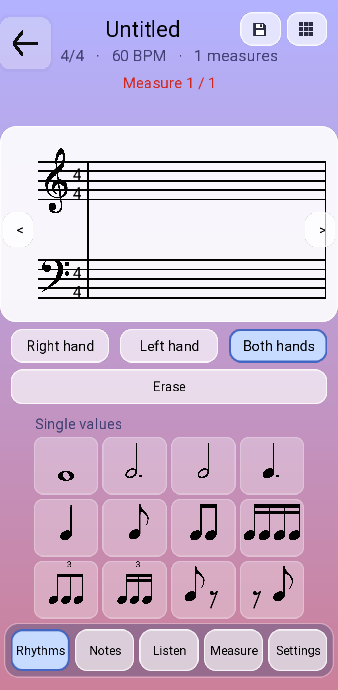
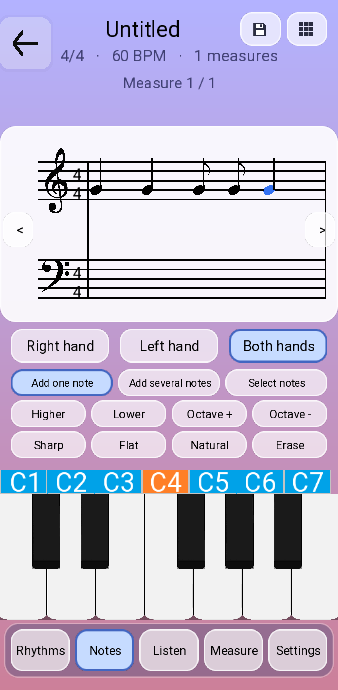
The editor
 1
2
3
4
5
6
7
8
9
1
2
3
4
5
6
7
8
9
- Name, time signature, tempo and length. Red on the bar counter means the bar is short or over-full.
- The treble staff — the right hand.
- The bass staff — the left hand. The two arrows for moving between bars sit in the gap between the staves, the one place on the page where a note never goes.
- Which hand you are writing into. Both hands shows the whole system.
- The three input modes.
- Higher and Lower move the selected note one degree; Octave + and Octave − move it a whole octave.
- Sharp, flat, natural, and erase.
- The octave strip, C1 to C7. It sets which octave the keyboard below is playing — the same strip you get in Free Play.
- The five tabs.
The five tabs
| Tab | What it holds |
|---|---|
| Rhythms | The note values, and further down the Ornaments: trill, staccato, tie, arpeggio, grace note, and the octave marks 8va, 8vb and 15ma. |
| Notes | Pitches, accidentals and the three input modes. Detailed above. |
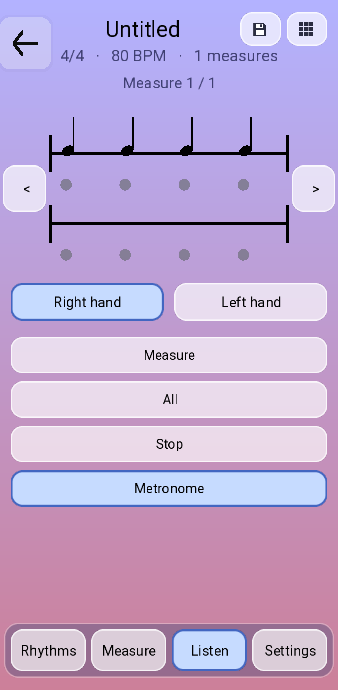
| Listen | Play the bar or the whole piece, with the metronome if you want it. |
| Measure | Add, delete, clear and copy bars, and set a tempo change from a given bar onwards. |
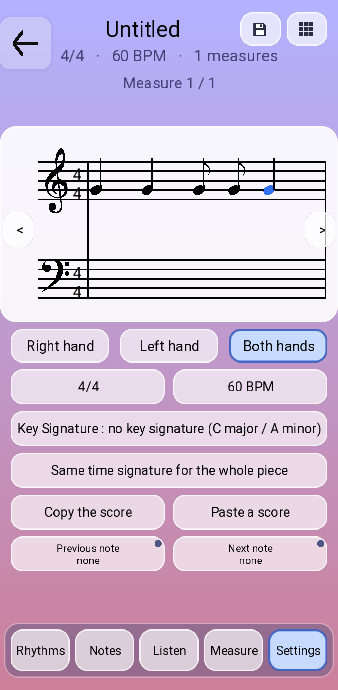
| Settings | Time signature, tempo, and the key signature — written once at the head of the staff and applying throughout. Also copy and paste for the whole score, and two rows that let you assign MIDI keys to previous note and next note, so you can write from the piano without touching the screen. |
Sending it to be read
Save, then send. The score appears in the piece list of Sheet music reading, and everything that mode offers then applies to it: one hand at a time, a passage looped, the tempo halved, and Wait for the right note for the first read-through.
Copying a piece in by hand is not a small job — but it only has to be done once, and what you get back is that piece, drilled the way the app drills its own exercises.
Scores live on the device and go with the app if you uninstall it. Use Copy the score in the Settings tab to put one on the clipboard before you do anything drastic.