
Rhythm
The other half of reading, on its own: when, with no which note to worry about. Two drums, a bar that scrolls past a playhead, and one judgement per note — you were on it, or you were not.
The screen
 1
2
3
4
5
6
7
8
1
2
3
4
5
6
7
8
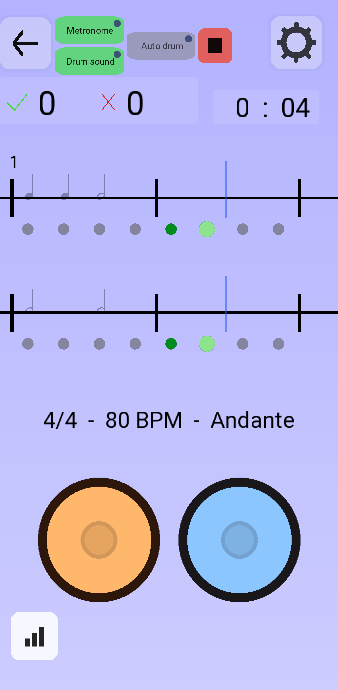
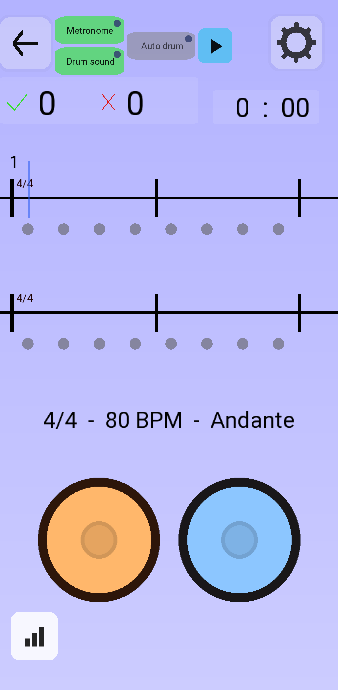
- Metronome and Drum sound. The first is the click you play against; the second is whether your own strokes make a noise. Both are on when green — and both hold down for a volume slider.
- Auto drum — the app plays the written rhythm itself so you can hear it before attempting it. It does not answer for you: the misses keep counting while it demonstrates. Hold it down, in two-handed play, to choose which hand it takes.
- Start and stop. The same button turns into a red square once the session is running.
- Hits and misses for this session.
- The playhead. It crosses the bar at the tempo shown below, and the note under it is the one being judged.
- The beat dots. They light up one by one as the pulse goes by, and turn green or red to show how the note above them was judged.
- The second stave. With two-handed play on, this one is the left hand — see below.
- The two drums: orange on the left, blue on the right. On a keyboard they are A and P by default.
How a session runs
- Press play. The app gives you one full bar of count-in before the first note. Anything you tap during the count-in is free — it is ignored, not counted as a miss.
- The playhead sets off. Hit the drum as each note goes under it.
- Each note turns green or red on the spot, and the dot beneath it does the same. A note is judged once, on a window around its beat: too early or too late both count as a miss, and so does letting a long note go before its time.
- The session ends when the timer runs out, or when you press stop. It is then written to the statistics.
By default the session has a set length rather than a set number of bars — Session length in the options. If you would rather practise a piece until you stop it yourself, use the loop instead.
Buttons that hide something
Several controls do one thing on a tap and open a second one when you hold them down. You would never find that by accident, so the app marks them: a small round dot in the top-right corner of a button means there is a submenu behind it. The dot is only ever on buttons that have one, which is what makes it worth trusting.
| Hold down… | …and you get |
|---|---|
| Metronome | A slider for the click volume alone. Drag it to zero and the switch turns itself off; raise it again and it comes back on — so you can never end up with a button lit on a sound you cannot hear. |
| Drum sound | The same slider, for your own strokes. Useful when you want the click loud and the drum discreet, or the reverse. |
| Auto drum | Which hand the app plays for you. It only carries a dot in two-handed play — with one hand there is nothing to choose. |
| The BPM figure in the options | A keypad, to type a tempo instead of hunting for it on the slider. A short tap works too. |
Choosing what comes up
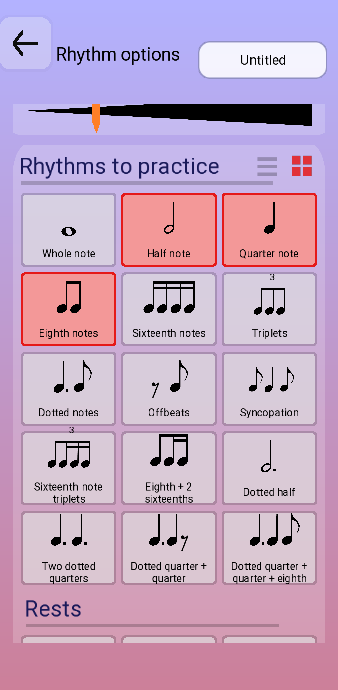
Left to itself the app generates random bars. What it is allowed to put in them is entirely yours to decide, and this is where most of the value of the mode sits: a list of rhythmic figures, each one on or off.
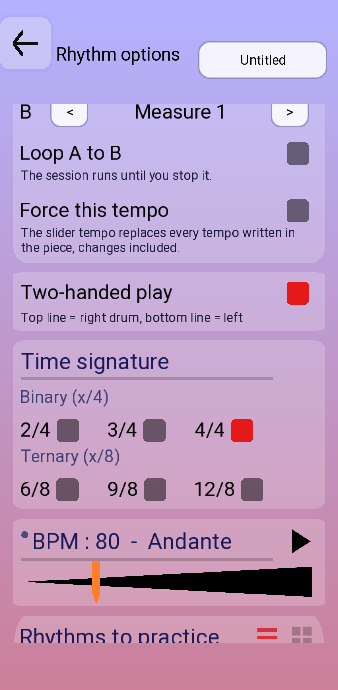
| Section | What it does |
|---|---|
| Time signature | Binary (2/4, 3/4, 4/4) or ternary (6/8, 9/8, 12/8). The ternary ones change how the beat divides, not just how many bars you count. |
| BPM | The tempo, with its Italian name beside it — 80 is Andante. Slow enough to be right beats fast enough to be impressive; the number is there to be lowered. |
| Rhythms to practise | Every figure the generator may use: plain values, dotted notes, triplets, offbeats, syncopation, combinations, and a trill. Turn everything off but one and the app will drill that one figure until it is automatic. |
| Rests | Rests are listed separately, from the whole rest down to the eighth. They are worth turning on sooner than people do — not playing on time is a skill of its own. |
Two hands
With Two-handed play on you get two staves at once and the mapping the option states plainly: top line is the right drum, bottom line is the left.
Underneath sits a chain icon, and it decides whether the two hands share a setting. Chain closed means the left hand follows the right, and its own figure list is greyed out. Open the chain and a second list appears — Rhythms — left hand — so you can give the left hand quarter notes to hold down while the right hand deals with sixteenths. That asymmetry is what real two-handed playing feels like.
If two hands is too much for now, Hand to practise at the top of the options limits a session to one of them.
Playing a written piece
Random bars are good for reflexes and bad for pieces. Anything you have written in the rhythm maker can be sent here and practised instead: the name of the piece appears at the top right of the options, and Default is what puts you back on random bars.
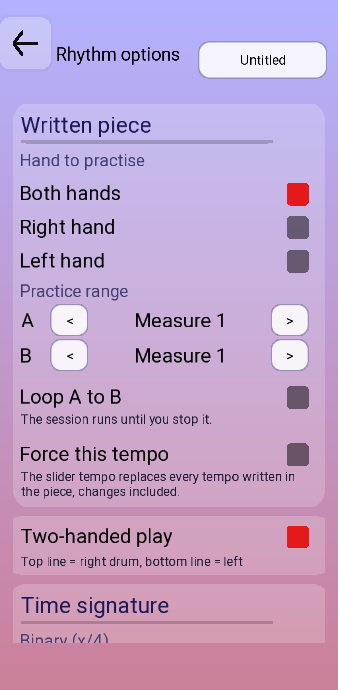
| Option | What it does |
|---|---|
| Practice range | Two markers, A and B, set in bars. The session plays only what lies between them — the four bars that keep falling apart, and nothing else. |
| Loop A to B | Repeats that range until you stop it. The session timer no longer ends the run. |
| Force this tempo | Overrides every tempo written into the piece, mid-piece changes included, with the one on the slider. This is how you take a piece at half speed without editing it. |
Everything else in the options
The rest of the menu is display and behaviour. None of it changes what you are asked to play; all of it changes how readable and how comfortable the screen is, which on a phone matters more than it sounds.
| Option | What it does |
|---|---|
| Metronome | Whether the click runs during the session. The same switch as the button on the playing screen. |
| Beat indicator | The row of dots under each stave. They light up with the pulse and then colour themselves green or red. Turning them off leaves you reading the notation alone, which is the honest version. |
| Tap indicator | Draws a mark where your stroke actually landed, next to where the note was. This is the one that tells you which way you are wrong — consistently early is a different problem from consistently late. |
| Colour judged notes | Turns each note green or red as it is judged. Off, the notation stays black and only the counters move. |
| Hit visual feedback | Flashes the drum when you strike it. Worth keeping on with the drum sound off — you still get a response, silently. Worth turning off if taps are going missing. |
| Drums | How big the two pads are: Normal, Large, or Half screen. Half screen gives you the biggest target in the app, at the cost of the space the notation had — and a bigger pad is one of the fixes for missed taps. |
| Measures per line | How many bars are drawn on one stave. Fewer means bigger notation. |
| Measure width | Standard widens a bar that has a lot in it, so a busy bar is not cramped — good on a tablet. Compromise keeps every bar the same width, which fits a phone. The hint under the setting says which is which. |
| Show score / Show the timer | Hide the counters or the clock. Some people play better without a number moving in the corner. |
| Countdown timer and Session length | Whether the clock counts down instead of up, and from how long. When it reaches zero the session ends by itself and is written to the statistics. |
| Show summary | Opens the statistics automatically when a session ends, instead of dropping you back on the playing screen. |
| Do not record stats | Throws this session away at the end. For trying a setting out without denting your averages. |
| Frames per second | Max, 60, or 30, and 30 is the default. This is not a picture-quality setting: it is the fix for missed taps, explained just below. |
If your taps are being missed
On some Android phones a fast stroke does not register: you hit the drum, you know you were on the beat, and the app marks a miss. This is a known problem, it is not your timing, and it has nothing to do with the tolerance window.
We measured it at the touch-driver level on a Galaxy S20 FE, and the result is unambiguous: under sustained fast tapping, the touch controller stops reporting contacts altogether, for one to four seconds. The app is not dropping anything — it receives one hundred per cent of what the driver sends it, 1.4 ms after the finger lands. The sensor simply goes quiet.
What that measurement ruled out: the sound, the area of the screen (a calculator takes 411 taps on the same spot without missing one), the temperature, the panel refresh rate, the audio engine, the Android version. What it left is that a game draws continuously where a calculator sits still, and the electrical noise from the panel and the GPU degrades the signal the touch sensor is trying to read — the sensor being built into that same panel.
Hence three settings that look cosmetic and are not. Measured incidents per thousand taps:
| Frames per second | Taps lost per 1000 |
|---|---|
| Max (120 Hz here) | 4.4 |
| 60 | 1.7 |
| 30 | 1.0 |
- Check Frames per second is on 30. It is the default and it is marked recommended for exactly this reason. The animation stays perfectly smooth at that rate — the number buys you nothing visible and costs you missed strokes.
- Try a bigger drum. A single point hammered over and over is what the panel gives up on first; Large or Half screen spreads your strokes over more of the surface, which is the only other remedy available from inside the app.
- Turn Hit visual feedback off. The flash under your finger is suspected of adding to the interference; without it you still get the sound and the note colour.
If the misses continue, the panel is the limit and no setting will get past it. Two ways round it, both of which leave the touchscreen out of the loop entirely:
- a Bluetooth keyboard — the two drums answer to A and P out of the box, and both are reassignable in Settings › Keyboard keys;
- a digital piano over USB, read as MIDI, which is the most accurate input the app has.
If you run into this, please tell us which phone you have. Only a list of affected models will show whether this is one manufacturer or the whole generation.
The statistics
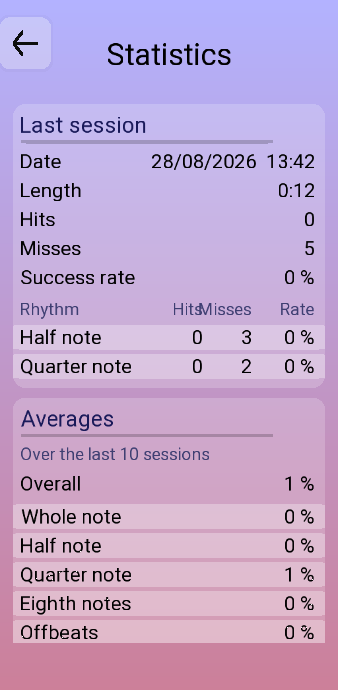
The useful half is the second one. A per-session score bounces around too much to mean anything; the averages over the last ten sessions, broken down by figure are what show you that quarter notes are solid, that eighths are getting there, and that triplets have not moved in a fortnight. Tap a row for the detail.