
Sheet music reading
Sight reading tells you which note. Rhythm tells you when. This screen asks for both at once, on real notation, which is what playing from a score actually is.
The screen
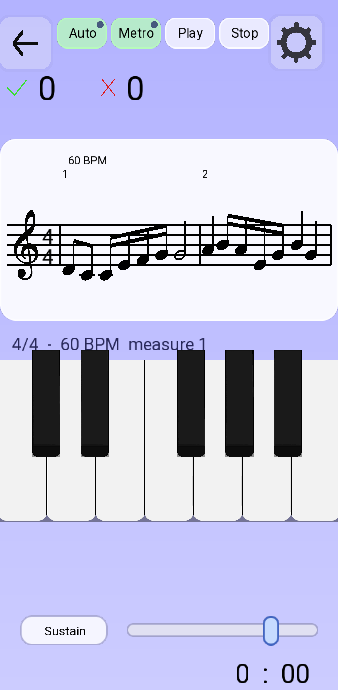 1
2
3
4
5
6
7
1
2
3
4
5
6
7
- Auto — the app plays a hand for you. Tap it to cycle through left, right, both and off, so you can let one hand run while you concentrate on the other.
- Metro — the click, on or off.
- Play and Stop. Play starts the piece from wherever the passage begins.
- Right and wrong for this run. At the end the app states the tally: piece finished, so many right, so many wrong.
- The notation. Real note values, beams, rests and bar lines, generated to your settings or taken from a score you wrote.
- What you are playing, at a glance: the time signature, the tempo and the bar you are in.
- The clock for this run.
How a run goes
Press play, and the piece moves at its tempo. Each note has a moment when it is due; play the right key at that moment and it is a hit. The piece runs to its end and reports the tally, and you can send it round again.
That is the demanding version, and it is the point of the mode — but it is a poor place to start. Two settings make the same screen far kinder, and both are worth knowing before your first attempt: the tempo, which goes as low as you need, and the mode below.
Wait for the right note
Turn on Wait for the right note and the piece stops on every note and waits. It moves on once you play it — and when you are reading both staves, once you play the whole chord together.
This takes the clock out of the exercise entirely, which is exactly what a first pass at an unfamiliar piece needs: you are decoding, not performing. Turn it off for the second pass and the same piece becomes a reading test again.
The options
| Option | What it changes |
|---|---|
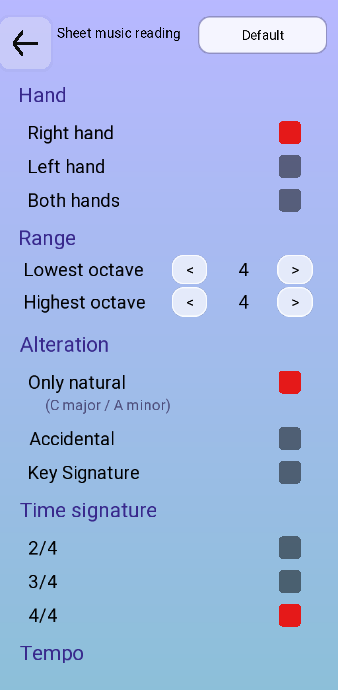
| Hand | Right hand, left hand, or both. Right and left each give you one stave with the on-screen keyboard underneath — treble for the right, bass for the left. Both hands is a different screen entirely: see below before you choose it. |
| Range | The lowest and the highest octave the generator may write in. Leaving both on 4 keeps everything around middle C, on the staff, with no ledger lines. Widening the range is what pushes notes above and below the five lines — and ledger lines are the part most people read slowest. |
| Alteration | The same three choices as sight reading: Only natural (which the app labels C major / A minor), individual accidentals written in front of a note, or a key signature at the head of the staff, where you pick sharps or flats and how many. |
| Time signature | 2/4, 3/4 or 4/4 for the generated piece. A piece you wrote yourself keeps its own. |
| Tempo | How fast the playhead crosses the bar, in BPM. This is the first thing to lower when a piece falls apart, and lowering it is not cheating — reading at 40 is still reading. |
| Piece and Length | Which piece to read — Default generates one, or pick a score you wrote — and how many bars a generated one runs to. Set the length to unlimited and the app keeps producing bars: each one, once played, is replaced in place by the next, so the piece never ends. |
| Measures per line | How many bars are drawn on one line. Fewer means bigger notation, which on a phone is usually the difference between reading and squinting. |
| Passage to practise | Two markers, From measure and To measure, with end as the default for the second. Only what lies between them is played. Add Loop from A to B and it repeats until you stop it — work the four bars that are wrong, not the twenty that are right. |
| Spacing | Traditional engraving spaces the notes the way a printed score does, which is what you will meet on paper. Proportional notation spaces them by how long they last, so a half note takes twice the width of a quarter and the page shows you the rhythm before you have counted it. Easier to learn from; less like the real thing. |
| Wait for the right note | The piece waits on each note until you play it. Detailed above. |
| Score on / Show the timer | Whether the right-and-wrong counters and the clock appear at all. Reading a first pass with both hidden takes a surprising amount of pressure off. |
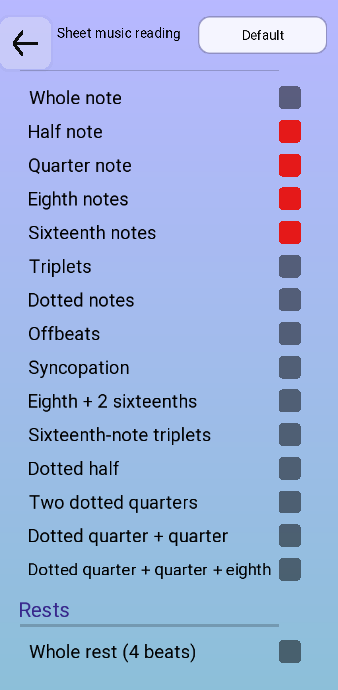
| Rhythms | The same figure list as the rhythm mode, applied to real notes: it decides which note values the generator may write. With two hands you get a list for each — the left hand can hold half notes while the right deals with sixteenths. |
Both hands needs an instrument
This is the one choice that changes the screen rather than the exercise.
- Right hand or left hand — the on-screen keyboard takes the bottom of the display, and what is left has room for one stave and one hand.
- Both hands — the on-screen keyboard disappears, along with the sustain button, and the score takes the whole screen: several lines, treble over bass, joined into a grand staff.
Which means that in two-hand mode there is nothing on screen to answer with, by design — the app gives the space to the notation and expects the notes to come from outside. Two things can provide them:
- a digital piano over USB, which is what the mode is built around;
- a Bluetooth keyboard, using the twelve piano keys assigned in Settings › Keyboard keys. A keyboard in front of the phone lets you hold a chord without a hand covering the staff, which is precisely the problem two hands creates.
The layout follows the menu choice, not what is plugged in. Selecting two hands with nothing connected gives you the full-screen score and no way to play it — the no MIDI device connected line stays on screen to remind you. That is deliberate: the alternative was a setting that silently undid itself when the piano took a second to announce itself.
Reading your own scores
The piece selector at the top right of the options says Default until you choose otherwise. Anything written in the score maker and sent here appears in that list, which is how you get from a piece I want to play to a piece the app drills me on.
Everything on this page then applies to it: one hand at a time, a passage looped, the tempo dropped, and the wait mode on for the first read-through.
A generated piece is good for reflexes. A piece you chose is good for motivation. Most people need both, and the app is happy to alternate — the piece selector is two taps away.